knacksnews
How to Convert JPG to SVG: The Best Methods for Beginners and Experts
Converting JPG images to SVG might seem tricky if you're new to vector graphics. If you've ever resized a JPG and noticed blurriness, you’ve seen its biggest limitation—it's made of pixels. SVG, on the other hand, is a vector format based on mathematical paths, meaning it scales without losing quality. This makes it ideal for logos, icons, and web graphics.
Whether you're a novice or a pro, being able to convert JPG to SVG can enhance your workflow. Luckily, there are numerous methods of doing so, ranging from speedy online converters to powerful software such as Adobe Illustrator. In this tutorial, we'll discuss the most effective ways to convert JPG to SVG effectively.
Why Convert JPG to SVG?
Before diving into the conversion methods, it's important to understand why SVG is often preferred over JPG. The main reason is scalability. JPG images are composed of pixels and thus become pixelated or blurry when scaled up. SVG images are not, however, because they're composed of shapes and paths rather than pixels.
This makes SVG the top choice for logos, icons, and even illustrations in web design. Another benefit is that SVGs are typically smaller than their high-resolution JPGs; thus, speed and efficiency are everything. Additionally, SVGs are editable: colors, shapes, and lines can be adjusted without recreating the graphic.
Methods to Change JPG to SVG
Converting JPG to SVG can be accomplished in various methods, depending on the purpose—whether you want a fast batch process or a more accurate, manual one. Here are the optimal ways to do high-quality JPG to SVG conversions.
Using Online JPG to SVG Converters
If you want the quickest and most convenient method to convert a JPG into an SVG, use online software. Online tools convert images instantly without the need to install any software. Free websites allow you to upload a JPG, tweak the settings, and download the SVG format in seconds.
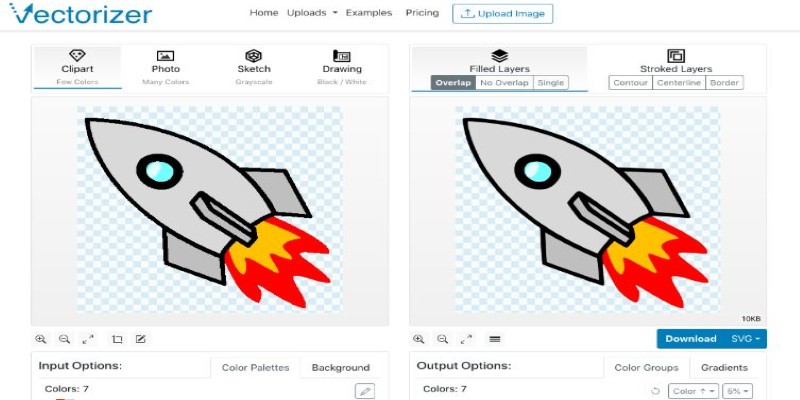
Some of the best JPG to SVG online converters include:
- Vectorizer.io – Offers detailed tracing and lets you fine-tune the conversion.
- Picsvg.com – A simple drag-and-drop tool for quick conversions.
- Convertio – Supports multiple file formats and customization options.
While these online tools are great for quick jobs, they might not always produce the most precise results. Automatic conversion can sometimes struggle with complex images or gradients, leading to rough edges or unexpected colors.
Converting JPG to SVG Using Adobe Illustrator
Adobe Illustrator is one of the best tools available for professionals who need complete control over the conversion process. It allows you to convert JPG images into vector format with a high level of precision.
Here’s how you can do it:
- Open Adobe Illustrator and import your JPG file.
- Select the image and go to Window > Image Trace to open the tracing panel.
- Choose a preset based on the type of image you’re converting (e.g., High Fidelity for detailed images, Black and White for simpler designs).
- Adjust the Threshold, Paths, and Corner settings for better accuracy.
- Click Expand to convert the image into editable vector paths.
- Save the file as SVG by selecting File > Save As > SVG.
Illustrator gives you the most flexibility, allowing you to refine edges, adjust colors, and remove unnecessary details. However, it does come with a learning curve, and it’s a paid tool, making it less accessible for casual users.
Using Inkscape – A Free Alternative to Illustrator
If you need a professional-quality tool but don’t want to pay for Adobe Illustrator, Inkscape is a great alternative. It’s open-source and offers powerful vector editing features similar to Illustrator.
To convert JPG to SVG using Inkscape:
- Open Inkscape and import your JPG image.
- Select the image and go to Path > Trace Bitmap to access the tracing options.
- Choose Brightness Cutoff or Edge Detection to define how the image is traced.
- Adjust the Threshold settings for better clarity.
- Click OK, then remove the original JPG layer, keeping only the traced vector.
- Save the file as an SVG.
Inkscape is a fantastic option for those who want more control over their vectorized images without investing in expensive software.
Converting JPG to SVG Manually in Photoshop
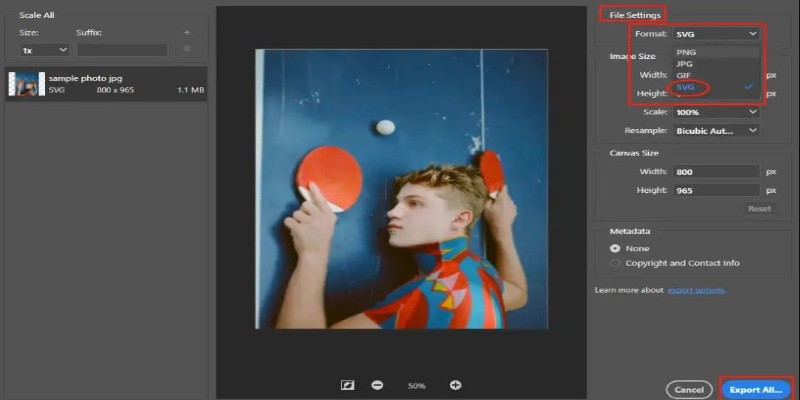
While Photoshop isn’t primarily a vector tool, you can still create SVG files by manually tracing an image. This method is best for simple logos or graphics rather than detailed photos.
- Open the JPG in Photoshop and use the Pen Tool to trace the important parts of the image.
- Convert each traced section into a Shape Layer to ensure it remains scalable.
- Once the tracing is complete, export the file as an SVG.
This process requires patience and a steady hand, but it’s a useful skill for designers who need precise results.
Which Method is Best for You?
The best technique for changing JPG to SVG depends on your needs. If you just want a quick conversion, online tools are the easiest option. If you need professional results with fine details, Adobe Illustrator or Inkscape is the way to go. For those who prefer manual control, Photoshop tracing offers a hands-on approach.
Vector-based tools like Illustrator and Inkscape give cleaner, more editable results for logos, icons, and flat graphics. On the other hand, complex images with gradients and textures may not always convert well into SVG without some manual adjustment.
Conclusion
Converting JPG to SVG isn't just about changing file formats—it's about making images scalable, editable, and more efficient for various uses. Whether you need a quick online tool or professional software like Adobe Illustrator or Inkscape, the right method depends on your needs. Online converters are great for fast results, while vector-based tools offer more precision. Manual tracing in Photoshop can also work for simple graphics. By choosing the best technique, you can create high-quality SVG images that remain crisp at any size. With the right approach, transforming JPG into SVG becomes an easy and valuable skill.
Related Articles

How to Edit a PDF on Windows Like a Pro: The Ultimate Step-by-Step Guide

How to Use Tags and Labels to Organize Your Files: A Step-by-Step Guide

How to Personalize and Scale Your SMS Marketing with EZ Texting
How to Turn an Image into an STL for the Best Stereolithograph in 3D Printing

How to Use Scheduling Assistant in Outlook: A Step-by-Step Guide

5 Proven Ways to Automate WordPress and Streamline Your Website Management
Choosing the Right PDF to Image Converter: A Review of 6 Top Picks

Which Are The Best Note-Taking Apps for Windows: Top Picks for 2025
How to Convert 4 JPG to BMP: Easily Decode Compressed Images into Uncompressed Files
How to Easily Print Contracts with ezeep Blue: A Complete Guide
How to Convert JPG to TIFF on Your Desktop: A Simple Guide