knacksnews
From SVG to PNG: The Ultimate Guide for Converting 2D Graphics into Digital Images
In the world of digital design and image editing, converting 2D images from one format to another can significantly impact the quality and versatility of your work. One of the most common conversions is from SVG (Scalable Vector Graphics) to PNG (Portable Network Graphics). This guide will walk you through the process, making it clear how and why you might want to convert SVG to PNG, especially if you're looking to enhance your digital photography projects.
Whether you are an experienced designer or just starting in image editing, understanding this conversion process can open a new universe of options for your creative work.
Why Convert SVG to PNG?
Converting SVG to PNG is useful because SVG files are vector-based, allowing them to scale infinitely without losing quality, making them ideal for logos and illustrations. However, PNG files are raster-based, making them better suited for photos and detailed images. The main reason for converting SVG to PNG is compatibility. PNG images are widely supported across various platforms, software, and websites, especially for photos, icons, and social media.
Whereas SVG works best for web design and scalable graphics, PNG makes it convenient to share the image and have it viewed or shared across devices and applications without the support for vector formats. The conversion process is effortless, and one ends up with a high-resolution image suitable for your creative work.
Step-by-Step Guide on Converting SVG to PNG
Different tools offer different methods for converting SVG format to PNG. This section intends to cover a few, starting with online tools and ending with professional software, so that you have various options from which to choose according to what serves you best.
Using Online Conversion Tools
For individuals who don't wish to work with sophisticated software or possess advanced design tools, online converter websites provide a hassle-free method for converting SVG to PNG. CloudConvert, Convertio, and Online-Convert are websites that enable users to upload their SVG files and easily convert them to PNGs in a matter of clicks.
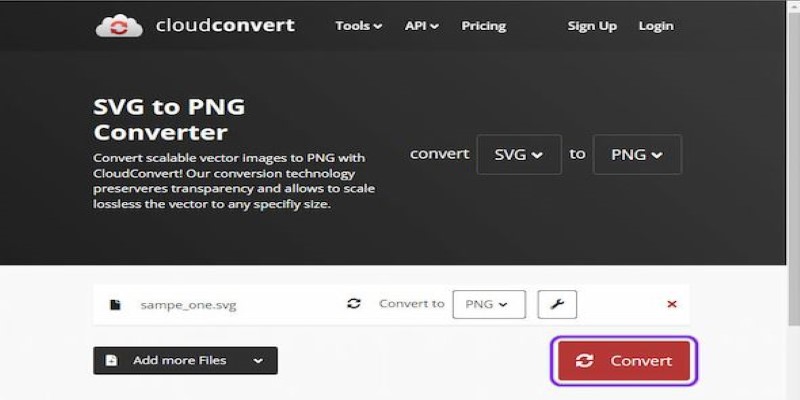
Here’s how you can do it:
- Step 1: Visit a reliable online conversion website.
- Step 2: Upload your SVG file from your device or cloud storage.
- Step 3: Choose PNG as the output format.
- Step 4: Customize the settings if necessary (for instance, adjusting the image resolution or transparency).
- Step 5: Hit the “Convert” button, wait for the process to finish, and then download the PNG file to your device.
Online converters are fast, easy to use, and don’t require any installations, making them an excellent choice for quick conversions. However, for those looking for more control or professional-level editing, more advanced methods might be necessary.
Using Adobe Illustrator
For those working with graphic design on a more professional level, Adobe Illustrator is one of the best tools for converting SVG files to PNG. Illustrator allows you to convert SVG files while giving you more control over image resolution and other settings.
Here’s how you can do it in Illustrator:
- Step 1: Open your SVG file in Adobe Illustrator.
- Step 2: Click on "File" and select "Export" > "Export As."
- Step 3: In the export options, choose PNG as the file format.
- Step 4: Adjust the resolution, transparency, and other settings to suit your needs.
- Step 5: Click "Export" to save the file as PNG.
Using Illustrator offers more flexibility, especially if you need to adjust the image’s resolution or edit the content before conversion. The software ensures the PNG file is optimized for various uses, from web design to print.
Using Photoshop
Adobe Photoshop is another powerful tool for converting SVG files to PNG. While Illustrator is better suited for vector graphics, Photoshop allows you to bring in vector images and export them as rasterized PNG files. Here's how to do it in Photoshop:
- Step 1: Open the SVG file in Photoshop. When prompted, you may need to rasterize the vector image.
- Step 2: Once the SVG file is opened, go to "File" > "Export" > "Export As."
- Step 3: Select PNG as your file format and adjust the resolution as needed.
- Step 4: Click “Export” to save the image as a PNG.
While Photoshop is primarily a photo-editing tool, it can handle vector images and convert them effectively to PNG, making it a great choice if you’re already using Photoshop for other aspects of your digital photography.
Using Inkscape (Free and Open-Source)
For those looking for a free alternative to Adobe Illustrator, Inkscape is an open-source vector graphics editor that can handle SVG to PNG conversions. This tool is ideal for users on a budget but still looking for professional-grade results.
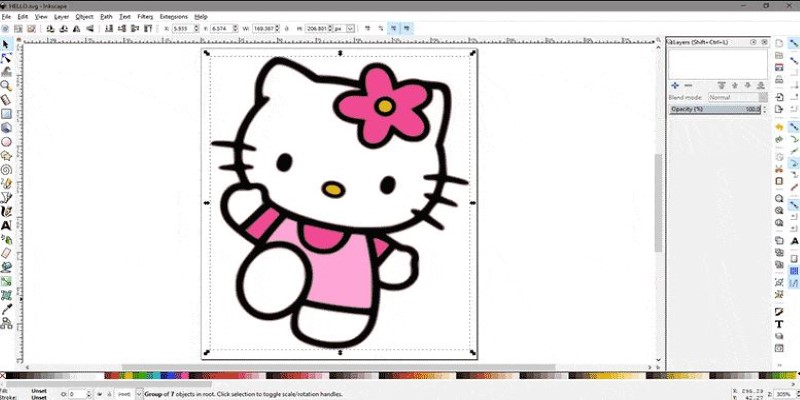
Here’s how you can use Inkscape to convert SVG to PNG:
- Step 1: Open your SVG file in Inkscape.
- Step 2: Go to "File" > "Export PNG Image."
- Step 3: Adjust the export settings, such as the resolution and image dimensions.
- Step 4: Click "Export As" to save the file as a PNG.
Inkscape provides a robust set of tools for vector editing, so if you need to adjust your image before converting it, this program can be a great choice.
Optimizing PNG Files for Digital Photography
After converting SVG to PNG, optimizing the file for digital photography is crucial. To improve website performance, consider compressing the PNG file using tools like TinyPNG or ImageOptim. This reduces the file size without compromising quality, ensuring faster load times.
Additionally, adjusting the resolution and dimensions based on the intended use—such as smaller sizes for thumbnails or social media—ensures the image remains sharp without unnecessary file size. By optimizing your PNG files, you maintain high-quality visuals while improving load times and performance, which is essential for a seamless user experience across websites and digital platforms.
Conclusion
Converting SVG to PNG is a simple yet essential process for making your 2D images more versatile and accessible across various platforms. Whether you use online tools, professional software like Adobe Illustrator, or free options like Inkscape, you can easily transform your vector graphics into high-quality raster images. By mastering this conversion, you can ensure your designs are optimized for digital photography and compatible with a wide range of uses, from websites to social media.
Related Articles

Which Are The 5 Best Calendar Apps for Mac to Organize Your Life in 2025

Transform Your Photos into Artistic Sketches with the Best Sketch Editor

Top 7 DPI Converters to Simplify Your Image Editing Needs
From SVG to PNG: The Ultimate Guide for Converting 2D Graphics into Digital Images

Fix HEIC Issues: AirDrop JPG from Your iPhone Easily

How to Detect AI-Generated Text and Photos in a World of Digital Deception
Best Image to PDF Converters for Desktop: 6 Top Picks
From ZIP to JPG – Your Go-To Guide for Quick Image Extraction

How to Add New Google Calendar Events to Notion: A Step-by-Step Guide
How to Easily Print Contracts with ezeep Blue: A Complete Guide
How to Turn an Image into an STL for the Best Stereolithograph in 3D Printing